Well things are a little busy this week, but im also getting things done fortunitely. I can finally fully walk around in my closet now thanks to my cleaning session I decided to do on my day off... hey it had to get done sometime. One thing I decided to do is to continue going through my C Book and finally get through coding all the exercises which leads me to my quick commentary on TextMate.
[Commentary] TextMate
I must say im rather late to the party when it comes to TextMate. The videos I saw gave me the impression it was a good text editor for code and so I downloaded it, but I never really gave it a try till recently. Last night I am going through my C programming language book by Denise Ritche ( I am determined to go through and code all the exercises in the book and I left off in the middle of the thing ) and so I decided to see how TextMate could handle the code from scratch and I can say after experience it handled everything excellently. Heck I could even tell TextMate to compile the C exercises for me so all I had to do was have a terminal open to execute the finished programs. Im still learning and evaluating TextMate before the trial is up, but it looks good and I think it’s something i’ll probably get here soon.
My only gripe with TextMate is that I wish it had code completion, but at the same time that might be venturing into the realm of starting to replace parts of Xcode which I don’t believe it’s meant to do.
[Tutorial] Printing WebViews
One thing you might think when printing a webview is that it should be as easy as something like simply going to File->Print when the WebView is visible or doing something like
- (IBAction)printWebView:(id)sender
{
NSPrintOperation *printOperation;
printOperation = [NSPrintOperation printOperationWithView:webView]
[printOperation setShowPanels:YES];
[printOperation runOperation];
}
However when this is run what happens? It only prints the visible bounds of the web view. At this point newbies and people unaccustomed to WebKit start to say things like WTF, etc. When you do this you are telling Mac OS X to print the WebView as it is visible. In order to print the whole contents of the WebView you must point it at it’s document view. So we end up with something like this:
- (IBAction)printWebViewContents:(id)sender
{
NSPrintInfo *printInfo = [NSPrintInfo sharedPrintInfo];
NSPrintOperation *printOperation;
NSView *webView = [[[myWebView mainFrame] frameView] documentView];
[printInfo setTopMargin:15.0];
[printInfo setLeftMargin:10.0];
[printInfo setHorizontallyCentered:NO];
[printInfo setVerticallyCentered:NO];
printOperation = [NSPrintOperation printOperationWithView:webView
printInfo:printInfo];
[printOperation setShowPanels:YES];
[printOperation runOperation];
}
Once that is is in place it will print all of the contents of the WebView. I set the margins myself in this case to try and make sure the specific document this method is printing fits the way I want.
[What do you want covered?]
One thing im starting to think about doing here soon is taking requests for covering various general cocoa topics. I used to be a n00b, but now Im sure I use a ton of things on a daily basis that I couldn’t figure out how to do when I was learning cocoa. If you think of something good post a comment about it here. I can’t guarantee i’ll cover everybody’s requests but if people want something explained in detail or elaborated on i’ll do my best to help you guys out.
[Happy Thanksgiving!]
Whatever you are doing this week I wish all of you safe travels or just a good time with friends and family regardless of what you are doing!
Well things are a little busy this week, but im also getting things done fortunitely. I can finally fully walk around in my closet now thanks to my cleaning session I decided to do on my day off... hey it had to get done sometime. One thing I decided to do is to continue going through my C Book and finally get through coding all the exercises which leads me to my quick commentary on TextMate.
[Commentary] TextMate
I must say im rather late to the party when it comes to TextMate. The videos I saw gave me the impression it was a good text editor for code and so I downloaded it, but I never really gave it a try till recently. Last night I am going through my C programming language book by Denise Ritche ( I am determined to go through and code all the exercises in the book and I left off in the middle of the thing ) and so I decided to see how TextMate could handle the code from scratch and I can say after experience it handled everything excellently. Heck I could even tell TextMate to compile the C exercises for me so all I had to do was have a terminal open to execute the finished programs. Im still learning and evaluating TextMate before the trial is up, but it looks good and I think it’s something i’ll probably get here soon.
My only gripe with TextMate is that I wish it had code completion, but at the same time that might be venturing into the realm of starting to replace parts of Xcode which I don’t believe it’s meant to do.
[Tutorial] Printing WebViews
One thing you might think when printing a webview is that it should be as easy as something like simply going to File->Print when the WebView is visible or doing something like
- (IBAction)printWebView:(id)sender
{
NSPrintOperation *printOperation;
printOperation = [NSPrintOperation printOperationWithView:webView]
[printOperation setShowPanels:YES];
[printOperation runOperation];
}
However when this is run what happens? It only prints the visible bounds of the web view. At this point newbies and people unaccustomed to WebKit start to say things like WTF, etc. When you do this you are telling Mac OS X to print the WebView as it is visible. In order to print the whole contents of the WebView you must point it at it’s document view. So we end up with something like this:
- (IBAction)printWebViewContents:(id)sender
{
NSPrintInfo *printInfo = [NSPrintInfo sharedPrintInfo];
NSPrintOperation *printOperation;
NSView *webView = [[[myWebView mainFrame] frameView] documentView];
[printInfo setTopMargin:15.0];
[printInfo setLeftMargin:10.0];
[printInfo setHorizontallyCentered:NO];
[printInfo setVerticallyCentered:NO];
printOperation = [NSPrintOperation printOperationWithView:webView
printInfo:printInfo];
[printOperation setShowPanels:YES];
[printOperation runOperation];
}
Once that is is in place it will print all of the contents of the WebView. I set the margins myself in this case to try and make sure the specific document this method is printing fits the way I want.
[What do you want covered?]
One thing im starting to think about doing here soon is taking requests for covering various general cocoa topics. I used to be a n00b, but now Im sure I use a ton of things on a daily basis that I couldn’t figure out how to do when I was learning cocoa. If you think of something good post a comment about it here. I can’t guarantee i’ll cover everybody’s requests but if people want something explained in detail or elaborated on i’ll do my best to help you guys out.
[Happy Thanksgiving!]
Whatever you are doing this week I wish all of you safe travels or just a good time with friends and family regardless of what you are doing!
Tuesday, November 21, 2006
[Commentary] TextMate and [Tutorial] Printing the contents of WebViews

Saturday, November 11, 2006
[Tutorial] Lets get sorting
Well I am back people! This whole past couple weeks have just been crazy at work and in combination with hunting bugs in my first early Beta of AssignmentTracker X I haven't had much time for this blog lately, but now I am back and things have settled down and I am already full of stuff to post. Hey I'm just a student people, give me a break. Well for today I am gonna post 2 things that made my own LicenseKeeper app a little bit better. (1)I liked that I could easily store all my serial numbers, but I wanted them sorted by default (2)When I resized the columns I wanted the app to keep track of the length of them Let's get sorting! Like many things in life Core Data has a slight trade-off in that you now have automatic data persistence, but the data is not sorted. If you create a Core Data app right now, like creating a simple table that displays entities with 1 attribute (lets say a name) and create a few entities without telling the array controller to sort them and then quit and reopen the app a few times, the order of the entities will be almost random every time. So people new to Core Data then ask how do we keep this data sorted? Well Apples Documentations spells it out like so “ Objects in a persistent store are unordered. Typically you should impose order at the controller or view layer, based on an attribute such as creation date. If there is order inherent in your data, you need to explicitly model that.” In other words it's up to you to sort your data. So all I did was create a controller class I called LKAppController with an outlet to the NSArrayController. Here is LSAppController.h.
#import < cocoa/cocoa.h > @interface LKAppController : NSObject { IBOutlet NSArrayController *licensesController; } @endThen I instantiated the class in Interface Builder and connected the outlet to the NSArrayController. And to sort the data I created a NSSortDescriptor and told the array controller to sort the objects it has with that sort descriptor in the awakeFromNib method. Here is LKAppController.m.
#import "LKAppController.h" @implementation LKAppController - (void)awakeFromNib { NSSortDescriptor * sd = [[NSSortDescriptor alloc] initWithKey:@"name" ascending:YES]; [licensesController setSortDescriptors:[NSArray arrayWithObject:sd]]; [sd release]; } @endI should state that this is not Core Data specific, in fact this method can be applied to any array controller in Cocoa. Now this is easy because in this instance we have a bunch of objects that we just want to sort by their name. I suggest that if you have to have objects in some specific order for something like a Source list (where we might want some static items at the top then user items at the bottom of the list) that you create an attribute and call it something like “position” that's an int sort it like that or use some other attribute or method you like, the point is you must create the means to sort the way you want. The only area where it may get difficult to auto sort items is in NSOutlineViews in which case you may find this ( http://allusions.sourceforge.net/articles/treeDragPart2.php ) to be of interest. Keeping track of column length So now we have our data sorted by default I wanted to do something nice for myself and make the app remember the length of all the columns when I resized them so I could at any time change them to my hearts content. Many people don't realize you can do this, but if you poke around in the Cocoa Bindings you can bind the length as well as the minimum length and max length of the columns to an entity or in this case (to make things simple) to the preferences.
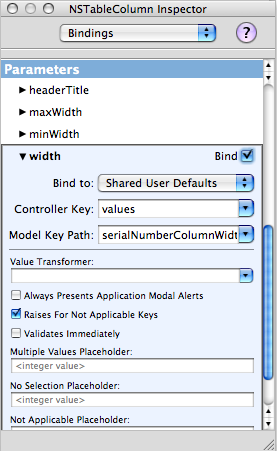 So all you need to do is select the table column and go to the Bindings option in the IB Inspector. Select the width attribute. For this we'll bind to Shared User Defaults (once you select this you should see the “Shared Defaults” controller appear in the instances tab), with the controller key “values” and model key path “nameColumnHeaderWidth” for the name column. Repeat the process for each additional column (giving a unique name for each model key path) and now your app will remember the length of each column as you drag them!
It's the nice little stuff like this that you do that your users will really appreciate when you put out your app.
So all you need to do is select the table column and go to the Bindings option in the IB Inspector. Select the width attribute. For this we'll bind to Shared User Defaults (once you select this you should see the “Shared Defaults” controller appear in the instances tab), with the controller key “values” and model key path “nameColumnHeaderWidth” for the name column. Repeat the process for each additional column (giving a unique name for each model key path) and now your app will remember the length of each column as you drag them!
It's the nice little stuff like this that you do that your users will really appreciate when you put out your app.
Sunday, October 29, 2006
[Helpful App] AppKiDo
 After posting about Docoa browser a couple people suggested I try AppKiDo which looked like a decent alternative. After testing it out for a while I thought I'd post some thoughts about it.
Upon launching it, AppKiDo takes a minute and begins parsing your documentation files, unfortunately this happens EVERY time you launch it. Upon completing this the documentation browser is launched. Right away unfortunately I saw something that I wish was different, I'm sorry but the brushed metal interface should really be changed to a unified interface. I installed UNO to see how AppKiDo would look with a unified UI (yeah I know I could have probably edited the NIB file, but I was lazy here) and it definitely looks better.
AppKiDo has somewhat of an odd interface, on the left is a drawer and on the right is where you can see all the documentation and it's various attributes. The Quicklist (drawer) has some usefull attributes like allowing you to only view things like view subclasses, classes with delegates, window classes, etc. Additionally you can search for classes, methods, etc in this drawer as well.
The window itself has 3 components: (1) A Browser (optional – can be hidden) This allows you to browse up and down the various classes as well as protocols, functions,etc for specific frameworks like AppKit, Foundation, Core Data, etc. (2) Detail view – This shows you the list of functions, procols, etc of any object you have selected. It has one big advantage over Docoa Browser and Xcodes Documentation browser in that it can show you all methods for a particular class, not only the ones specifically for that class but ones that it has inherited which makes AppKiDo very powerful in this instance. (3) The Documentation Viewer itself shows you the documentation for whatever you are looking at.
Overall AppKiDo is very powerful and definitely a good documentation browser. Yet at the same time I find myself wanting to rearrange the interface, AppKiDo doesn't feel natural. I may not know what the right interface is, but at the same time I know when something is wrong. Some things like the fact that I can browse classes just for specific frameworks on the quicklist drawer, but can't do the same in the browser feels incredibly akward.
Don't get me wrong I feel AppKiDo is a very powerful application, I just feel like it's user interface is holding it back and when it's interface gets a overhaul it could very well be the perfect documentation browser.
AppKiDo can be downloaded from here: http://homepage.mac.com/aglee/downloads/appkido.html
UPDATE: One commenter informed me I indeed overlooked the preferences where the brushed metal UI can indeed to be turned off, still brushed metal really shouldn't be the default
After posting about Docoa browser a couple people suggested I try AppKiDo which looked like a decent alternative. After testing it out for a while I thought I'd post some thoughts about it.
Upon launching it, AppKiDo takes a minute and begins parsing your documentation files, unfortunately this happens EVERY time you launch it. Upon completing this the documentation browser is launched. Right away unfortunately I saw something that I wish was different, I'm sorry but the brushed metal interface should really be changed to a unified interface. I installed UNO to see how AppKiDo would look with a unified UI (yeah I know I could have probably edited the NIB file, but I was lazy here) and it definitely looks better.
AppKiDo has somewhat of an odd interface, on the left is a drawer and on the right is where you can see all the documentation and it's various attributes. The Quicklist (drawer) has some usefull attributes like allowing you to only view things like view subclasses, classes with delegates, window classes, etc. Additionally you can search for classes, methods, etc in this drawer as well.
The window itself has 3 components: (1) A Browser (optional – can be hidden) This allows you to browse up and down the various classes as well as protocols, functions,etc for specific frameworks like AppKit, Foundation, Core Data, etc. (2) Detail view – This shows you the list of functions, procols, etc of any object you have selected. It has one big advantage over Docoa Browser and Xcodes Documentation browser in that it can show you all methods for a particular class, not only the ones specifically for that class but ones that it has inherited which makes AppKiDo very powerful in this instance. (3) The Documentation Viewer itself shows you the documentation for whatever you are looking at.
Overall AppKiDo is very powerful and definitely a good documentation browser. Yet at the same time I find myself wanting to rearrange the interface, AppKiDo doesn't feel natural. I may not know what the right interface is, but at the same time I know when something is wrong. Some things like the fact that I can browse classes just for specific frameworks on the quicklist drawer, but can't do the same in the browser feels incredibly akward.
Don't get me wrong I feel AppKiDo is a very powerful application, I just feel like it's user interface is holding it back and when it's interface gets a overhaul it could very well be the perfect documentation browser.
AppKiDo can be downloaded from here: http://homepage.mac.com/aglee/downloads/appkido.html
UPDATE: One commenter informed me I indeed overlooked the preferences where the brushed metal UI can indeed to be turned off, still brushed metal really shouldn't be the default
Friday, October 27, 2006
[Helpful App] Docoa Browser
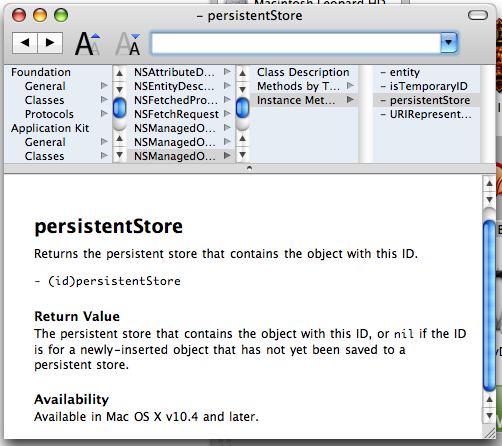 Hello everybody! I just wanted to post something you may find interesting. Docoa Browser (based on Cocoa Browser from a LONG time ago) has been updated to run on the most recent documentation from Apple!
If you don’t know what Docoa Browser is, it’s basically a slim and fast documentation browser which allows you to browse most documentation by browsing through a simple column view which you can go through very quickly. I really liked this browser before when I was first learning cocoa and I still like it today. If you find the built in documentation browser to be a bit slow at times you can give Docoa browser a try. This was just posted to the Apple Cocoa mailing list yesterday, and I was only able to download it during my Ames Mac Users Group (AmesMUG) meeting, so I haven’t had a lot of time to test it, but so far it’s worked really well.
Now to be honest this app probably won’t satisfy all your documentation browsing needs, but it should perform well for basic documentation browsing. You can download it from here (warning! this is just the source code and not a prebuilt binary so you'll have to compile it yourself): http://www.muratnkonar.com/docoafortiger/Docoa-0.3.4mnk.zip
Hello everybody! I just wanted to post something you may find interesting. Docoa Browser (based on Cocoa Browser from a LONG time ago) has been updated to run on the most recent documentation from Apple!
If you don’t know what Docoa Browser is, it’s basically a slim and fast documentation browser which allows you to browse most documentation by browsing through a simple column view which you can go through very quickly. I really liked this browser before when I was first learning cocoa and I still like it today. If you find the built in documentation browser to be a bit slow at times you can give Docoa browser a try. This was just posted to the Apple Cocoa mailing list yesterday, and I was only able to download it during my Ames Mac Users Group (AmesMUG) meeting, so I haven’t had a lot of time to test it, but so far it’s worked really well.
Now to be honest this app probably won’t satisfy all your documentation browsing needs, but it should perform well for basic documentation browsing. You can download it from here (warning! this is just the source code and not a prebuilt binary so you'll have to compile it yourself): http://www.muratnkonar.com/docoafortiger/Docoa-0.3.4mnk.zip
Tuesday, October 24, 2006
[Commentary] Thoughts on the HIG
Im working on my next tutorial which will appear soon, but for now i’d thought I’d share a few thoughts and see what you all think. Ok once again there seems to be a big topic on everybody’s minds and this time it’s the Human Interface Guidelines. Scott has some insightful commentary on this. I believe early on when I first started learning Cocoa, I took a look at this document. As far as I can remember people have been chastising Apple for not following it. Right away some things didn’t make sense like the specific types of apps that brushed metal was supposed to be used on, etc. Personally I don’t think I’ll read the HIG again anytime soon. Why? Because if you really think out a solution and take into account the users perspective while following what should be common sense, you don’t really need the HIG. Remember when your designing an app, your designing a solution to a problem so you should try and make it simple. Right away when someone looks at your app it should be very apparent what the app does and give the user a good idea of how it works. If someone has to spend a good while looking around at your app to begin to figure out these things then your solution is already too complicated, they might not be able to use everything right away but they should get the gist of it. A big pitfall of some developers is throwing too much at your user. A good example is maybe your developing a simple image edit app. If your user is typically a amateur photographer and just wants to maybe crop and do some adjustments to the image quality, do you think they’ll really need a metadata inspector window constantly showing and taking screen real estate? Of course you can suffer from the exact opposite of this and throw too little at your user to the point where they are constantly opening up things. For example Im not pro photographer but, I presume Apple did some research and decided it was a good idea for pro photographers to have access to a bunch of panels for color correction, image adjustment, metadata, etc in Aperture. Another thing I tell myself when designing UI’s is “Don’t be like the Windows developers!” Now this is not to say that all windows UI designers are crap, it’s just there are so many Windows programs I look at and go “why did they do this?” and “wtf is the purpose of this?” and so on. One of my friends who goes to Iowa State University told me in one of his classes they covered this new Windows framework (who’s name escapes me at the moment, I think it’s the windows presentation framework or something like that) that can make all these magical UI effects. He was in a group and they were designing a UI which I believe was a login window or something like that. Should be simple right? Well they wanted to have a paper clip dance around the window and have other visuals. My friend (evidently being the only sane person in the group) didn’t like this idea. Around this time the teacher came by, now you think anybody who was sane would chastise the group for putting up such a dumb idea that wastes so much resources on something so simple. But the teacher thought it was a good idea. Now I should issue a disclaimer that not all teachers at ISU are like this thankfully. So in conclusion here are the basic points
- Identify what the problem is your solving
- Define everything you require to solve the problem
- Don’t throw everything at once to the user, define the common tasks your users will be performing on the app and design around that (but allow them to get to the more complicated parts easily if they need to get to them)
- Design everything around the basic purpose of your app
- Go for the simplest solution first (you’ll get more done faster and your users will love your app because they can get things done faster) even if it takes a little bit of trial and error to find what that is “the simplest solution is usually the most elusive” - Jonathan Ive (may not be exact quote, I can’t find my iMac movie)
- Don’t waste resources on things you really don’t need in your app.
Monday, October 16, 2006
Coming Soon...
Sorry I haven't written for a little bit, first I was surprised that I was picked up by CocoaDevCentral and then I kept spending lots of time working on AssignmentTracker X. The Good news is im planning on an expansion into the LicenseKeeper app and will show you how to auto sort items in Core Data and always restore the length of columns the user sets them to in tables, and maybe a couple other little things if I get around to it. It's just an easy one to get me back on track of writting here more. For now I must work on getting AssignmentTracker X 2.0 Beta 1 out the door then I'll write here.
Monday, October 09, 2006
Holy Crap I've been picked up by CocoaDevCentral!
 I was taking a random look at the performance of my sites and realized I never looked at how my brand new blog Cocoa Samurai is doing. When I saw the chart I saw a huge surge of visitors to the page, when looking at where the visitors where coming from I saw CocoaDevCentral on the list. When I visited the page I saw my name right next to Wil Shipley.